
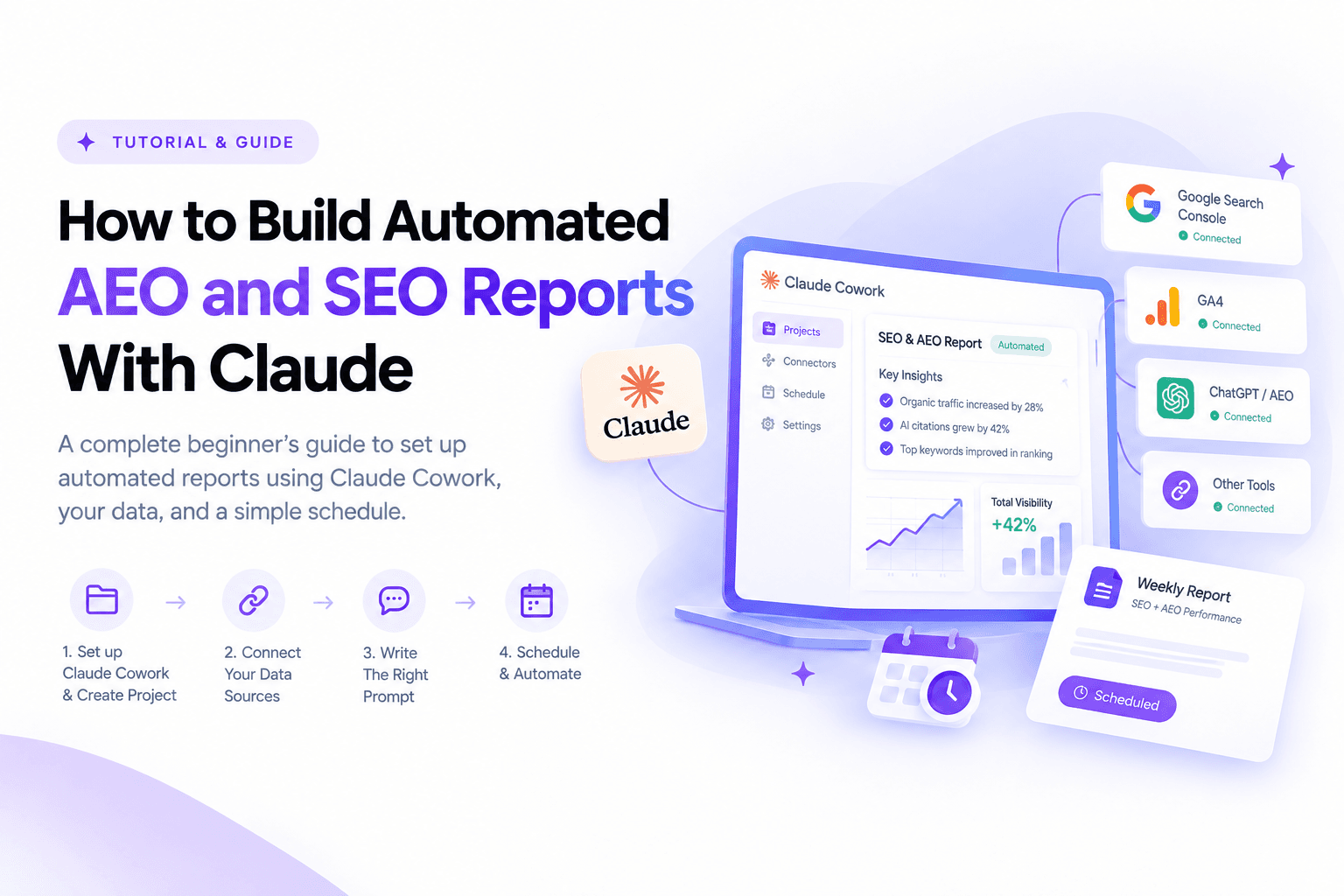
Setting up an automated report sounds like a technical project, the kind of thing that needs a developer and a few days of API wrangling. It genuinely does not have to be. What it actually needs is four things done in the right order: a place for Claude to keep its instructions, a connection to your real data, a well written prompt, and a schedule that fires that prompt without you touching it. This guide walks through all four, end to end, assuming you have never set any of this up before.
Which part of Claude actually does this
This trips up almost everyone starting out, so it is worth clearing up first. Claude.ai has a feature called Projects, a workspace with custom instructions and uploaded reference files that every conversation inside it can see. It is genuinely useful for keeping a client's brand voice or a keyword list handy, but on its own it cannot run anything automatically. It waits for you to open a chat and ask.
The piece that actually automates reporting lives in Claude Cowork, Anthropic's agentic workspace for non developer work. Cowork has its own version of projects, plus two things regular Claude.ai Projects don't have: connectors to your real tools, and scheduled tasks that run a saved prompt on a cadence you set, even while your computer is off. That combination, a project holding your instructions plus a scheduled task running them, is the entire mechanism behind "automated reports." Everything below is built around Cowork.
Cowork is available on Pro, Max, Team, and Enterprise plans, on desktop, with web and mobile currently rolling out. If you are on a free plan, skip ahead to the fallback method near the end, it still gets you most of the way there manually.
Step 1: Set up Cowork and create your first project
Open Claude Desktop, and look for Projects in the left sidebar. Click to create a new one and give it a plain name, something like "Client SEO Reporting" or "Oxale AEO Tracking" if you're running this for your own site. A Cowork project has four parts worth understanding before you fill them in.
Instructions are the standing brief Claude reads before every task in this project. This is where you put things that never change: your brand's reporting tone, which metrics matter most, who the report is for, and any formatting rules. A short example that works well for a beginner:
You are helping prepare recurring SEO and AEO reports for [business name]. The audience is a non technical business owner who wants clear takeaways, not raw data dumps. Always lead with what changed and why it matters, before the numbers. Flag anything that dropped more than 15 percent in a single week. Keep the whole report under one page unless something urgent needs more detail. Use plain, direct language and avoid jargon like "SERP" or "CTR" without explaining it in parentheses the first time.
Context is where you attach a local folder, a linked chat, or a URL Claude should reference, your previous month's report, a competitor list, or your target keyword sheet, for instance.
Scheduled tasks live inside the project and are covered in Step 5 below.
Memory is enabled automatically once the project exists. Claude remembers what it learned from earlier tasks inside this specific project, so once you correct a formatting mistake or clarify a metric definition, it should carry that forward on its own without you repeating yourself.
Step 2: Connect your real data sources
A report is only as good as what feeds it, and this is the step people most often rush. Open the Customize sidebar and look for connect your tools, where Cowork lists the services it can authorize access to. For SEO and AEO reporting specifically, you are usually connecting three kinds of sources.
Google Search Console and GA4. These are not native one click connectors inside Cowork yet, so the practical route is the Model Context Protocol, MCP, which is the open standard that lets Claude query a live data source instead of you exporting a CSV every week. Google itself publishes an official Analytics MCP server for GA4 data, and third party MCP servers built specifically for Search Console, including a hosted option from Porter Metrics, let you paste one URL into Claude's connector settings and query both properties in plain language from then on. The setup usually takes under five minutes: copy the MCP URL, open Connectors, choose Add custom connector, paste it in, and sign in with Google when prompted.
Your AEO or AI visibility tool. Most of the platforms covered previously, Otterly.AI, Peec AI, Profound, and similar, offer either an API, a scheduled CSV export, or in a few cases a direct MCP connection. AgencyAnalytics has gone further and shipped built in MCP access specifically for ChatGPT and Claude, meaning an assistant can query live client dashboard data rather than working from a static export. Check whichever tool you are already paying for before building a manual workaround, the category is moving quickly and native support is becoming the norm rather than the exception.
Gmail or Outlook. You will need this connected regardless for Step 6, so authorize it now while you are already in the Connectors panel.
A useful habit here: connect one source, then ask Claude directly inside the project, "pull last week's top 10 queries from Search Console," and confirm it actually returns real numbers before adding the next connector. Debugging one connection at a time is far less painful than debugging three at once.
Step 3: Decide which reports you actually need
Beginners tend to build one giant report that tries to cover everything, and it ends up too long for anyone to read and too generic to act on. A tighter approach is to run two or three distinct report types, each with a clear job and a fixed structure.
The weekly rank and traffic snapshot. Short, fast to read, meant to catch problems early rather than to be comprehensive.
Top 5 keyword movements, up or down, with the page involved
Organic traffic versus the previous week, from GA4
Any indexing errors or new Search Console warnings
One sentence on what needs attention this week, if anything
The monthly SEO performance report. The one that goes to a client or a boss, written to be understood without SEO background.
A two or three sentence executive summary at the top
Organic traffic trend, month over month and year over year if available
Ranking movement for your priority keyword set, grouped by topic cluster rather than a flat list. This pairs directly with how many keywords a single page should target, since a cluster based report only works if the underlying keyword strategy is clustered the same way
Top performing and worst performing pages
Completed work this month and what's planned next
The AEO or AI citation report. New territory for most beginners, and worth keeping separate from the traditional SEO report rather than merging the two.
How often the brand was cited across ChatGPT, Perplexity, and Google's AI Overviews this period
Which specific pages got cited, and for which questions
Competitor citation share, if your AEO tool tracks it
One clear recommendation, usually a content gap the data reveals
The technical health alert. Not scheduled on a fixed cadence, this one is triggered by a condition, a sudden ranking drop, a spike in 404 errors, a manual action notice. Set the threshold in your project instructions, as shown in the example above, and let Claude flag it whenever it shows up in a run rather than waiting for the next scheduled report.
Four report types is already generous for a beginner. Start with just the weekly snapshot and the monthly report, and only add the other two once the first two are running reliably.
Step 4: Write the actual report prompt
This is the piece that determines whether the output is genuinely useful or just a wall of numbers. A prompt for a scheduled task needs to be fully self contained, since nobody is there to clarify anything mid run. Here is a working template for the monthly report, written to be copied and adjusted.
Pull organic traffic data from GA4 and ranking data from Search Console for [domain] covering the last calendar month, compared against the previous month. Also pull citation data from [your AEO tool] for the same period. Structure the report exactly as follows: a 2 to 3 sentence summary of the month at the top, written for a non technical business owner. Then a section on traffic trends with the specific percentage change stated. Then keyword movement grouped by these clusters: [list your topic clusters]. Then top 5 and bottom 5 performing pages by organic sessions. Then AEO citation summary, how many times we were cited and on which pages. End with exactly one paragraph titled "What this means for next month" that gives a single clear recommendation, not a list of five. Do not include raw data tables, translate every number into a sentence. Keep the whole report under 600 words.
Notice what that prompt does that a vague one would not: it names the exact data sources, the exact structure, the exact tone, and a hard length limit. Beginners usually write "give me a monthly SEO report" and get something inconsistent every time. Specificity here is what makes the automation trustworthy enough to actually stop checking manually.
Step 5: Turn the prompt into a scheduled task
Inside your project, find Scheduled in the left sidebar and choose New task. You have two paths: describe what you want in plain language and let Claude draft the task for you, or write the prompt yourself and set the cadence directly. For a beginner, the first path is genuinely easier, type something like "create a scheduled task that runs my monthly SEO report on the first Monday of each month" and Claude will typically ask a few clarifying questions before finalizing it.
Set the cadence to match the report type, weekly for the snapshot, monthly for the full report. Each scheduled run happens as its own separate Cowork session and runs remotely, meaning it fires on schedule even if your laptop is closed. You can review every past and upcoming run from the same Scheduled panel, which is worth checking after the first two or three runs to make sure the output matches what you expected.
Step 6: Get it emailed to yourself or to your boss
This is the part most beginners actually came here for, so it deserves its own careful walkthrough. With Gmail or Outlook connected from Step 2, add a line to the end of your report prompt along these lines:
Once the report is complete, send it as an email to [recipient email address] with the subject line "[Client/Site name] SEO and AEO report, [month]" and the report itself in the email body, formatted with clear headings.
A couple of things worth knowing before you rely on this fully. The first time a scheduled task tries to send from a connected inbox, Cowork may prompt for a one time confirmation to make sure you're comfortable with automatic sending. Once that is approved, subsequent scheduled sends typically go out without anyone present to click anything. Watch the first two runs closely regardless, confirm the email actually landed and looks right, rather than assuming silence means success.
If you would rather keep a human checkpoint in the loop, a safer variant for the first month is asking Claude to draft the email and save it to your drafts folder instead of sending it outright, then you press send yourself once you trust the output. Swap "send it as an email" for "save it as a draft email" in the prompt above and that is the only change needed.
For sending to a boss or a client rather than yourself, the same instruction works, just point the recipient field at their address. If you want the same report going to more than one person, list every address in the prompt itself rather than relying on Claude to guess who else should see it.
Step 7: Test it before you trust it
Do not wait for the first scheduled run to see if this works. Open the project and run the exact same prompt manually first, as a normal task rather than a scheduled one. Check three things specifically: are the numbers actually correct against what you can see directly in Search Console or GA4, is the structure matching what you asked for, and does the tone read the way a client would expect. Fix anything wrong in your project instructions or prompt now, while you're watching, rather than after a client receives a broken report.
Step 8: Refine over the first month
The first version of any prompt is rarely the final one. Common adjustments people make in the first few weeks: tightening the word limit because the report is running long, adding a specific competitor to track because a client asked about them by name, or changing which metric leads the summary because traffic swings turned out to matter less than a particular keyword cluster. Every correction you make inside the project gets remembered for future runs in that same project, so the report genuinely gets sharper the more you use it rather than staying static.
Common mistakes beginners make
A few patterns show up again and again with a new setup like this. Skipping the manual test run in Step 7 is the most common one, and it is usually how a client ends up receiving a report with a formatting error or a wrong number in the first week. Writing a prompt that says "give me an SEO report" with no structure specified is another, since Claude will produce something reasonable but inconsistent from run to run without a fixed template to follow. And connecting an AEO tool without first confirming it actually exposes an API or MCP option, some smaller platforms still require a manual CSV export, which means the automation has a silent gap right where AI citation data was supposed to sit.
If you don't have Cowork yet: the manual fallback
If you're on a free Claude.ai plan or your organization hasn't rolled out Cowork, you can still get most of the value here, just with one manual step added. Export your Search Console and GA4 data as a CSV each week, upload it into a regular Claude.ai Project along with the same instructions from Step 1, and ask for the report using the same prompt template from Step 4. It will not run itself or email anyone automatically, but writing the report itself goes from an hour of manual work to a two minute upload and a copy paste into an email. It is a reasonable bridge while you decide whether the full automated setup is worth the upgrade.
FAQ
Frequently Asked Questions on Automated AEO and SEO Reports With Claude
Do I need to know how to code to set any of this up?
No. Connecting MCP servers involves copying and pasting a URL rather than writing any code, and the scheduled task setup can be done entirely by describing what you want in plain language and letting Claude draft the configuration.
How many scheduled reports should a beginner run at once?
Start with one, the monthly report, get it right for a full cycle, and only add the weekly snapshot once the first one is running without surprises. Running four report types before any of them are dialed in usually means fixing four broken things at once instead of one.
Can the same scheduled task update as our reporting needs change?
Yes. Editing a scheduled task's prompt takes effect on its next run, so you can refine the structure, add a new metric, or change the recipient at any time without recreating the task from scratch.
What happens if one of my connected data sources has an outage during a scheduled run?
The task will typically still run and generate a report, but with a gap where that source's data should be, so it's worth instructing Claude in your prompt to explicitly flag any data source that returned no results rather than silently omitting it.
Is it safe to let Claude send emails automatically without me checking each one?
For a personal weekly snapshot to yourself, most people are comfortable with fully automatic sending after the first few verified runs. For anything going to a client or a boss, keeping the draft only setting from Step 6 for at least the first month is the more cautious choice, since it puts a human check between the automation and someone else's inbox.